How To Change Your Request An Appointment Form Email Recipient
To set up the Appointment Form Email Recipient email address follow the below steps.
1) Log in to PatientSites Web Editor at client.patientsites.com

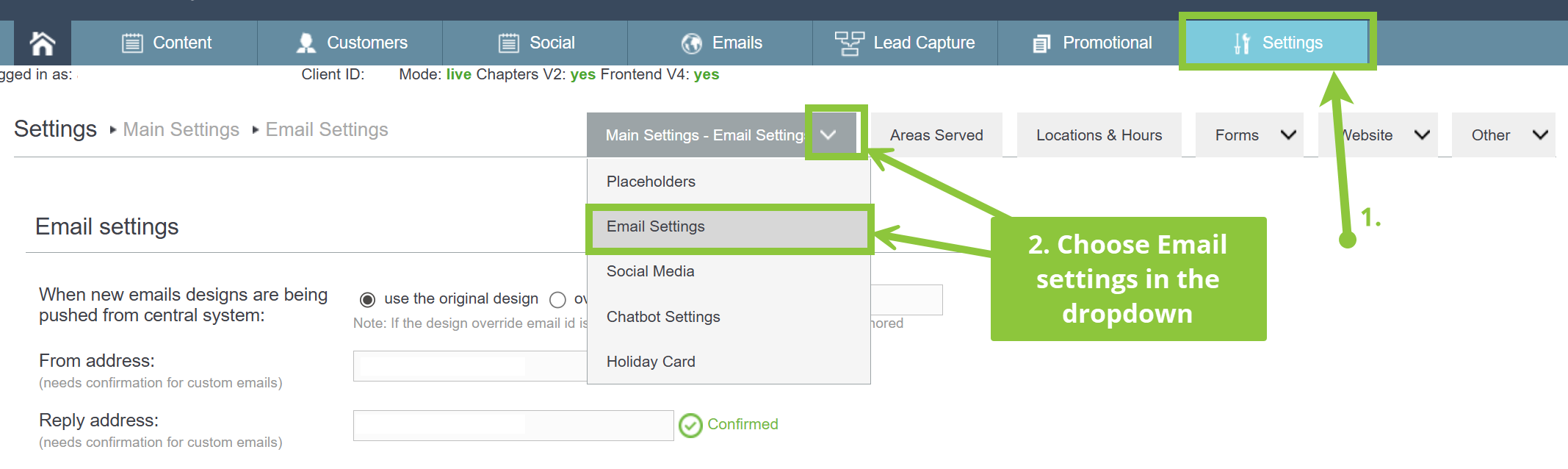
2) In the main menu, click on Settings, then navigate to the Location & Hours submenu.

3) In the Email field of each location, you will be able to set a main email address that will receive the emails after someone fills out the Appointment Form on your website.
In the Email CC field you will be able to add multiple email addresses separated by a comma (,) that will also be copied (CC'd) on the Appointment Form emails.

4) Once you added your Email address(es), make sure to click the green Save button.
Alternatively, you can also add email addresses, separated by a comma (,) under the Main Settings -> Email Settings submenu.
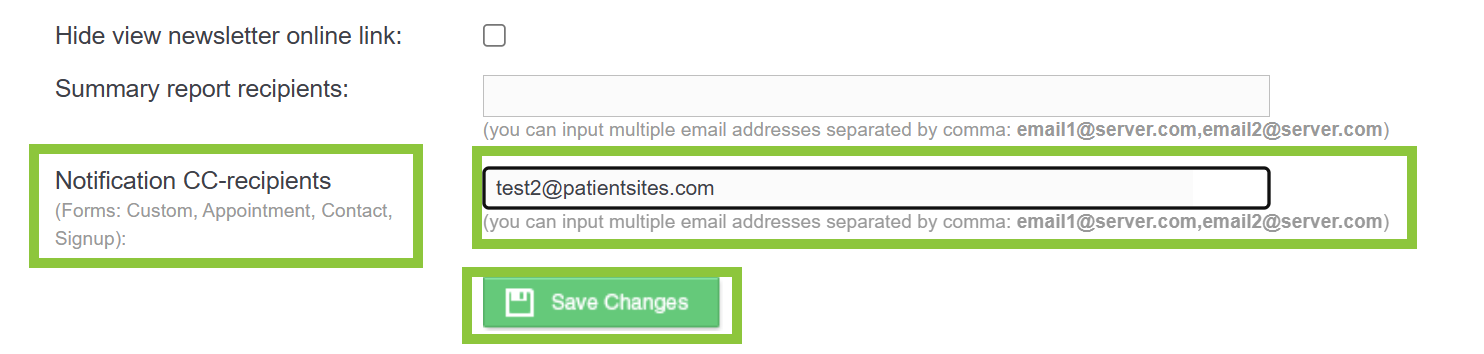
Then scroll down to the "Notification CC-recipients" entry, and add as many email addresses as you wish to be copied on Appointment forms, Contact forms, Signup forms, and Custom forms. Then Save Changes.