
How to add a button to your email
1) Log in to PatientSites Web Editor at client.patientsites.com

2) Head over to Emails and locate the email you’d like to edit. Click the pencil and paper icon in the Actions column to open the Email Editor, which will open in a separate window.

3) Head to the Content tab on the right-most side of the editor and click and drag the Button element onto your email where you’d like to place it.

4) Click on the Button element to open the Button options on the right.
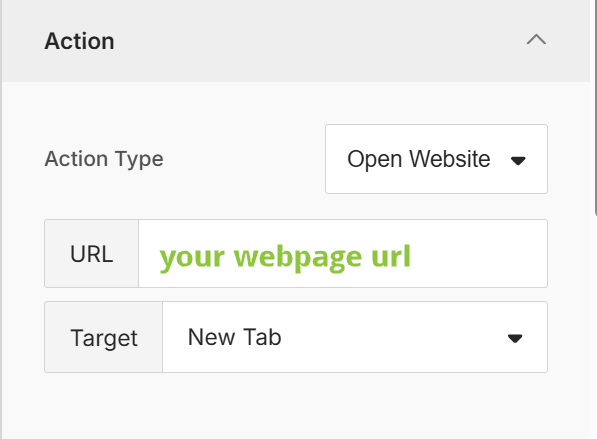
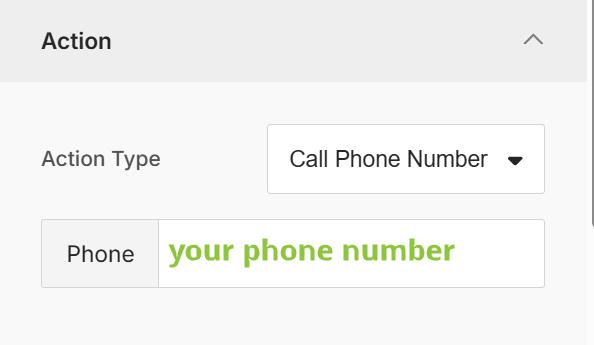
Under Action, you’ll be able to choose an Action Type to decide what happens when the button is clicked: open a website, send an email or call a phone number

- In case of a website
- Enter the URL of the webpage you’d like to open in the URL field
- Choose whether the new webpage gets opened in a new tab or the same tab
- In case of sending an email
- Enter the email address, Subject and contents of the email in the Mail to, Subject and Body fields respectively
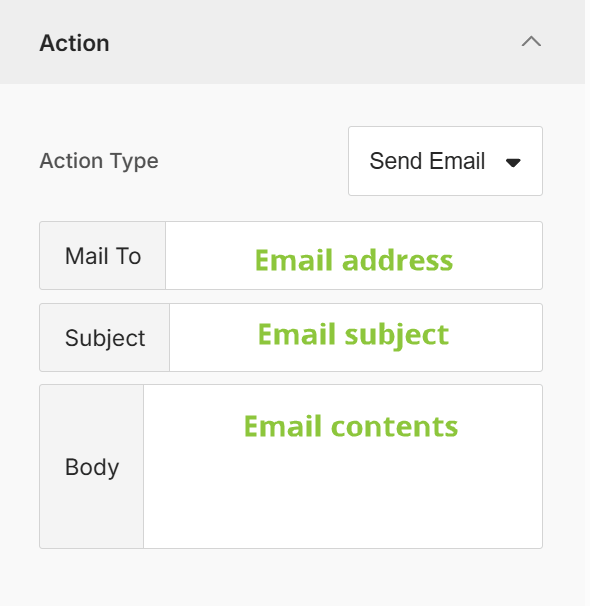
- Enter the email address, Subject and contents of the email in the Mail to, Subject and Body fields respectively
- In case of calling a phone number, enter the number in the Phone field
5) Under Button Options you can set the button’s background color, text font, size, color, etc.

6) Scrolling even further, you’ll have options to adjust spacing and padding on the button.

7) To edit the Button’s text, just double click the Button element you added to the page and type in what you’d like it to say.
