
How to use Email AI to create content in your newsletters
1) Log in to PatientSites Web Editor at client.patientsites.com

2) Head over to Emails in the main menu and click the Monthly Newsletters tab.

3) Choose the Newsletter you wish to edit, and click the Pencil and Paper icon at the end of its row under the Actions column.

4) There’s 3 main things you can use AI for when it comes to editing your emails/ newsletters:
- Generate better Headings
- Generate better or more text content
- Generate better Buttons
Generating headings:
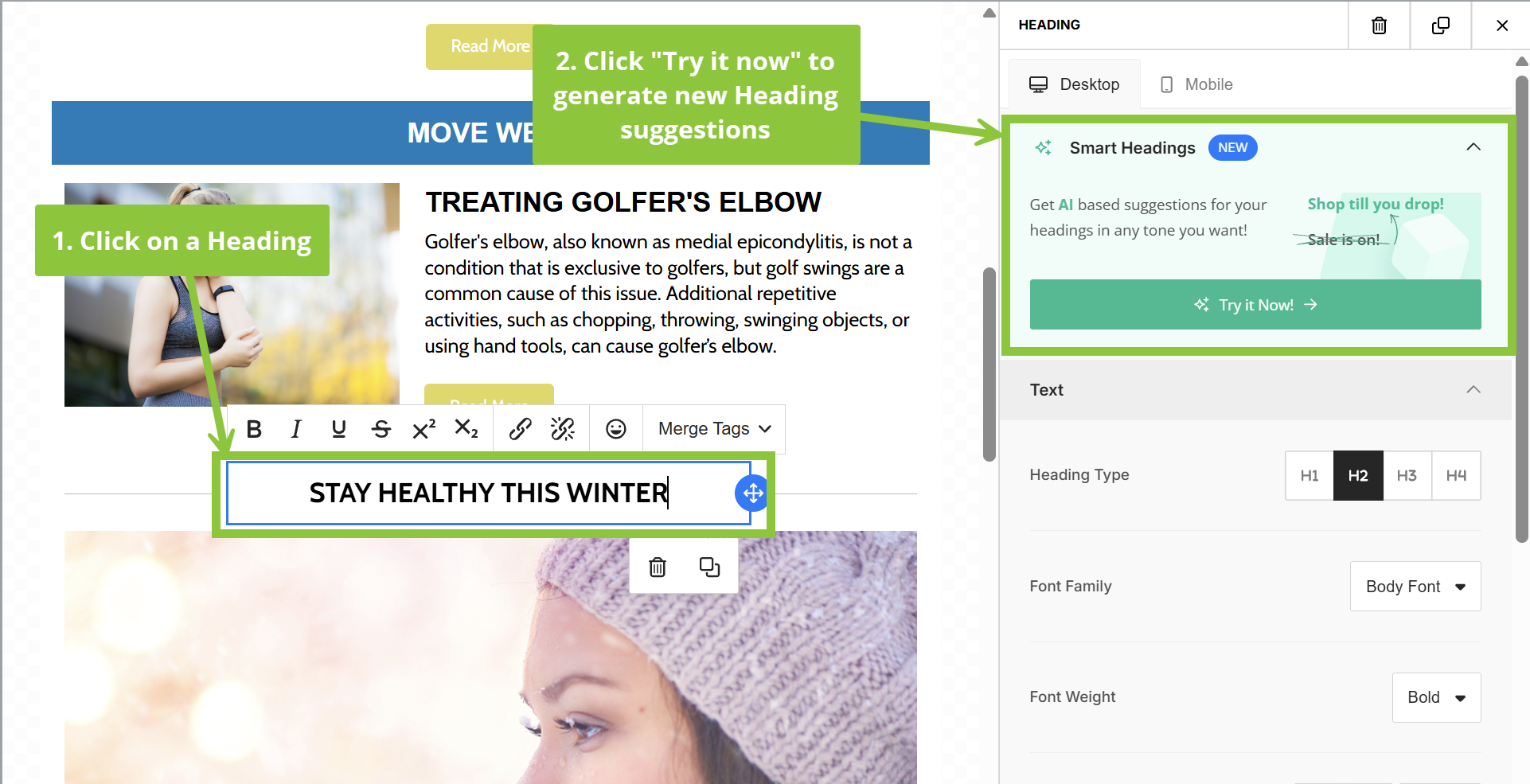
- Click on the heading you’d like to improve to open the Heading options on the right side of the Email editor.
- At the top of the Heading options, in the “Smart Headings” section, click “Try it now” to generate Heading suggestions.
-
You will be given 5 AI-generated heading suggestions. You can select your preferred tone to generate new suggestions (friendly, luxury, relaxed, professional, bold, witty).
-
Click on your preferred heading suggestion to replace the existing heading.

Generating text:
- Click on the text box you’d like to improve or expand and click the “Smart Text” button in the pop-up toolbar

- Choose your preferred action: Fix Spelling and Grammar, Expand Text, Summarize Text, Rephrase Text, Make it Friendly, Make it formal

Generating Buttons:
- Click on the Button you’d like to improve to open the Button options on the right side of the Email editor.
- At the top of the Button options, in the “Smart Buttons” section, click “Try it now” to generate new Button suggestions

- You will be given 5 AI-generated button suggestions. You can select your preferred tone to generate new suggestions (friendly, luxury, relaxed, professional, bold, witty)
- Click on your preferred button suggestion to replace the existing button
